> ## Documentation Index
> Fetch the complete documentation index at: https://docs.requesty.ai/llms.txt
> Use this file to discover all available pages before exploring further.
# Prompt Library
> Create, version, and manage reusable prompt templates with model parameters, response formats, diffs, and API integration
The Prompt Library is your central hub for managing reusable prompt templates. Create system and user messages, attach model parameters and structured output formats, track versions with full diffs, organize with tags, and reference prompts in any API request with a single `prompt_id`.
**[Open the Prompt Library](https://app.requesty.ai/prompts)** in the Requesty Console.
## Prompts List
The prompts list gives you a searchable overview of every prompt in your organization.
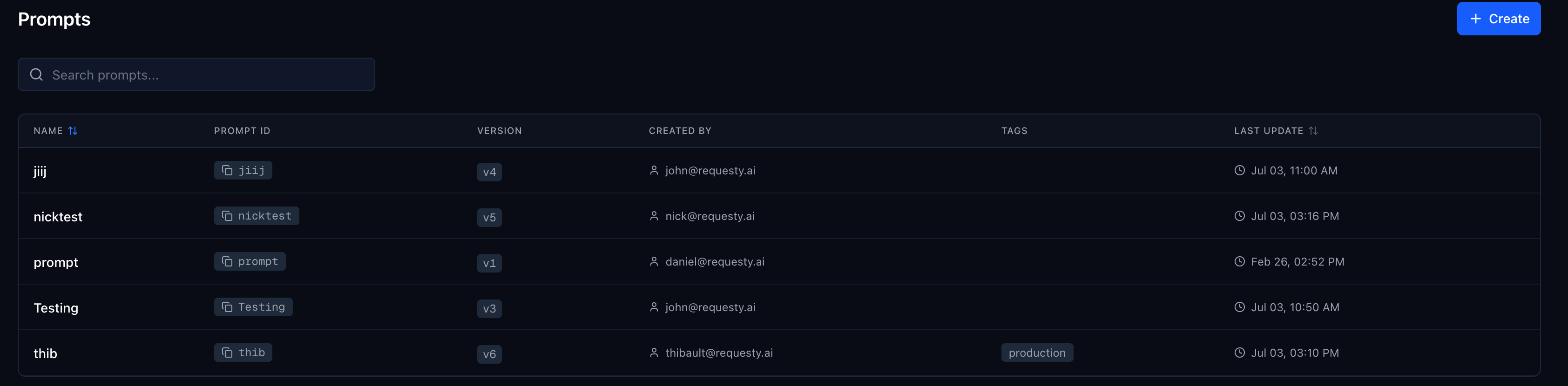 Each row shows:
| Column | Description |
| --------------- | ---------------------------------------------------------------- |
| **Name** | Display name of the prompt, sortable alphabetically |
| **Prompt ID** | Click to copy identifier used in API requests via `prompt_id` |
| **Version** | Latest version number (e.g. `v6`) |
| **Created By** | Email of the team member who last updated the prompt |
| **Tags** | Labels like `production` or `dev` for filtering and organization |
| **Last Update** | Timestamp of the most recent version, sortable |
Use the search bar to filter by name, tag, or creator email. Click **+ Create** to start a new prompt, or click any row to open the editor.
## Prompt Editor
The editor is where you build and refine your prompt templates. It supports multiple messages, model parameters, response formats, template variables, tags, and three view modes: Pretty, JSON, and Diff.
Each row shows:
| Column | Description |
| --------------- | ---------------------------------------------------------------- |
| **Name** | Display name of the prompt, sortable alphabetically |
| **Prompt ID** | Click to copy identifier used in API requests via `prompt_id` |
| **Version** | Latest version number (e.g. `v6`) |
| **Created By** | Email of the team member who last updated the prompt |
| **Tags** | Labels like `production` or `dev` for filtering and organization |
| **Last Update** | Timestamp of the most recent version, sortable |
Use the search bar to filter by name, tag, or creator email. Click **+ Create** to start a new prompt, or click any row to open the editor.
## Prompt Editor
The editor is where you build and refine your prompt templates. It supports multiple messages, model parameters, response formats, template variables, tags, and three view modes: Pretty, JSON, and Diff.
 ### Messages
A prompt template is an ordered list of messages. Each message has a **role** (`System` or `User`) and text content.
* **System messages** steer the AI's behavior. They define the persona, rules, and constraints.
* **User messages** provide context, examples, or few-shot patterns.
Use **+ Add Message** to append a new message. Reorder messages with the arrow buttons, or delete them with the trash icon. Order matters: messages are prepended to your API request in the exact order they appear in the template.
A prompt must have at least one message and supports up to 32.
### Model Parameters
Click the **Parameters** button next to "Messages" to configure model parameters that are applied automatically when the prompt is used. Active parameters are shown as summary badges (e.g. `Temp 0.8`, `Reasoning high`, `Max 5000`).
The following parameters are available:
| Parameter | Range | Description |
| -------------------- | ----------------- | ------------------------------------------------------------------------------------------- |
| **Temperature** | 0 to 2 | Controls randomness. Lower values produce more focused output, higher values more creative. |
| **Reasoning Effort** | Low, Medium, High | Applied when the model supports extended reasoning. |
| **Max Tokens** | 1+ | Maximum number of tokens in the model's response. |
| **Top P** | 0 to 1 | Nucleus sampling. The model considers tokens with top\_p cumulative probability. |
| **N** | 1+ | Number of completions to generate per request. |
Parameters are optional. Leave any parameter unset to use the model's default. When a parameter is set on the prompt, it overrides the corresponding value in your API request.
Add a parameter by clicking its name in the "Add parameter" section of the popover. Remove it by clicking the X next to the active parameter. Each parameter includes a slider or number input for precise control.
### Response Format
Click **Response Format** next to **Parameters** to save the output format with the prompt. This is useful when a prompt always needs JSON or strict structured output.
| Mode | API value | Description |
| --------------- | ------------------------- | ----------------------------------------------------------------------------------------------------------------- |
| **Off** | Unset | The request uses its own `response_format`, if any. |
| **JSON** | `{"type": "json_object"}` | Forces free-form JSON output. Add clear instructions in the prompt so the model knows which JSON shape to return. |
| **JSON Schema** | `{"type": "json_schema"}` | Enforces a named JSON Schema for supported models. |
When **JSON Schema** is selected, configure:
| Field | Required | Description |
| --------------- | -------- | ---------------------------------------------------- |
| **Name** | Yes | Schema name sent to the provider. |
| **Description** | No | Optional guidance for the schema's purpose. |
| **Strict** | No | Maps to provider strict schema mode where supported. |
| **Schema** | Yes | A valid, non-empty JSON object. |
Use the [Structured Outputs](/features/structured-outputs) guide for schema requirements and model support. Prompt-level response formats are applied automatically when the prompt is used and override the caller's `response_format`.
### Template Variables
Prompts support Jinja-style template variables using `{{variable_name}}` syntax in any message. Variables are automatically detected and displayed in the **Prompt Variables** section below the editor.
For example, a system message containing:
```
You are a {{animal}} and should always sound like this {{animal}}
```
shows `{{animal}}` as a recognized variable. At request time, pass values via `prompt_variables` in the API call.
### Tags
Add tags like `production`, `dev`, `staging`, or any custom label to organize your prompts. Type a tag name and press Enter to add it. Tags appear in the prompts list for quick filtering.
## Versioning
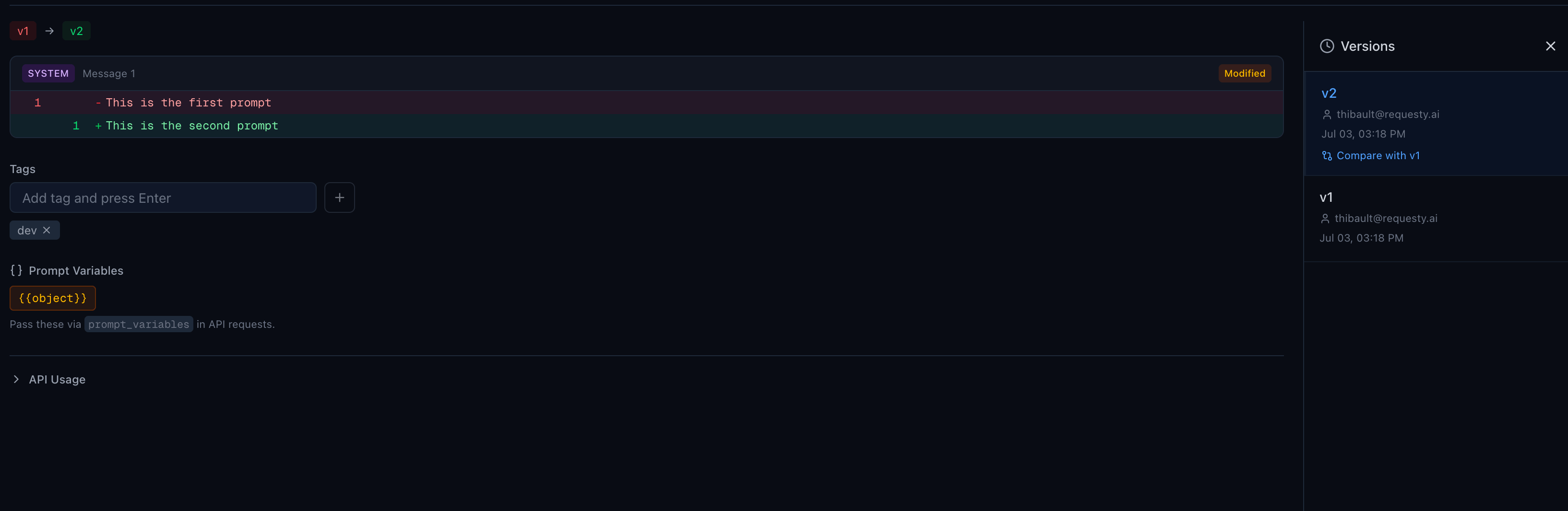
Every save creates a new version. The version history sidebar shows all versions with their creator, timestamp, and a link to compare any version with the one before it.
### Messages
A prompt template is an ordered list of messages. Each message has a **role** (`System` or `User`) and text content.
* **System messages** steer the AI's behavior. They define the persona, rules, and constraints.
* **User messages** provide context, examples, or few-shot patterns.
Use **+ Add Message** to append a new message. Reorder messages with the arrow buttons, or delete them with the trash icon. Order matters: messages are prepended to your API request in the exact order they appear in the template.
A prompt must have at least one message and supports up to 32.
### Model Parameters
Click the **Parameters** button next to "Messages" to configure model parameters that are applied automatically when the prompt is used. Active parameters are shown as summary badges (e.g. `Temp 0.8`, `Reasoning high`, `Max 5000`).
The following parameters are available:
| Parameter | Range | Description |
| -------------------- | ----------------- | ------------------------------------------------------------------------------------------- |
| **Temperature** | 0 to 2 | Controls randomness. Lower values produce more focused output, higher values more creative. |
| **Reasoning Effort** | Low, Medium, High | Applied when the model supports extended reasoning. |
| **Max Tokens** | 1+ | Maximum number of tokens in the model's response. |
| **Top P** | 0 to 1 | Nucleus sampling. The model considers tokens with top\_p cumulative probability. |
| **N** | 1+ | Number of completions to generate per request. |
Parameters are optional. Leave any parameter unset to use the model's default. When a parameter is set on the prompt, it overrides the corresponding value in your API request.
Add a parameter by clicking its name in the "Add parameter" section of the popover. Remove it by clicking the X next to the active parameter. Each parameter includes a slider or number input for precise control.
### Response Format
Click **Response Format** next to **Parameters** to save the output format with the prompt. This is useful when a prompt always needs JSON or strict structured output.
| Mode | API value | Description |
| --------------- | ------------------------- | ----------------------------------------------------------------------------------------------------------------- |
| **Off** | Unset | The request uses its own `response_format`, if any. |
| **JSON** | `{"type": "json_object"}` | Forces free-form JSON output. Add clear instructions in the prompt so the model knows which JSON shape to return. |
| **JSON Schema** | `{"type": "json_schema"}` | Enforces a named JSON Schema for supported models. |
When **JSON Schema** is selected, configure:
| Field | Required | Description |
| --------------- | -------- | ---------------------------------------------------- |
| **Name** | Yes | Schema name sent to the provider. |
| **Description** | No | Optional guidance for the schema's purpose. |
| **Strict** | No | Maps to provider strict schema mode where supported. |
| **Schema** | Yes | A valid, non-empty JSON object. |
Use the [Structured Outputs](/features/structured-outputs) guide for schema requirements and model support. Prompt-level response formats are applied automatically when the prompt is used and override the caller's `response_format`.
### Template Variables
Prompts support Jinja-style template variables using `{{variable_name}}` syntax in any message. Variables are automatically detected and displayed in the **Prompt Variables** section below the editor.
For example, a system message containing:
```
You are a {{animal}} and should always sound like this {{animal}}
```
shows `{{animal}}` as a recognized variable. At request time, pass values via `prompt_variables` in the API call.
### Tags
Add tags like `production`, `dev`, `staging`, or any custom label to organize your prompts. Type a tag name and press Enter to add it. Tags appear in the prompts list for quick filtering.
## Versioning
Every save creates a new version. The version history sidebar shows all versions with their creator, timestamp, and a link to compare any version with the one before it.
 ### Version Sidebar
Click the **N versions** button in the top bar to open the version sidebar. Each entry shows:
* Version number (e.g. `v2`)
* Creator email
* Timestamp
* A JSON or JSON Schema badge when the version has a response format
* **Compare with vN** link for the currently selected version
Click any version to load it in the editor. The selected version is highlighted with a blue border.
### Diff View
Click **Diff** in the top bar or **Compare with vN** in the version sidebar to see a line-by-line comparison between two versions. The diff viewer shows:
* A version indicator (`v1 → v2`) at the top
* Each changed message with a **Modified**, **Added**, or **Removed** badge
* Line-by-line additions (green `+`) and removals (red `-`) with line numbers
* Role changes displayed inline if the message role was modified
Switch between **Pretty**, **JSON**, and **Diff** views using the toggle in the top bar.
### JSON View
Click **JSON** to see the raw JSON representation of your prompt messages and settings. If model parameters or a response format are configured, they appear under `params`; valid JSON Schema text is shown as a parsed object.
## API Usage
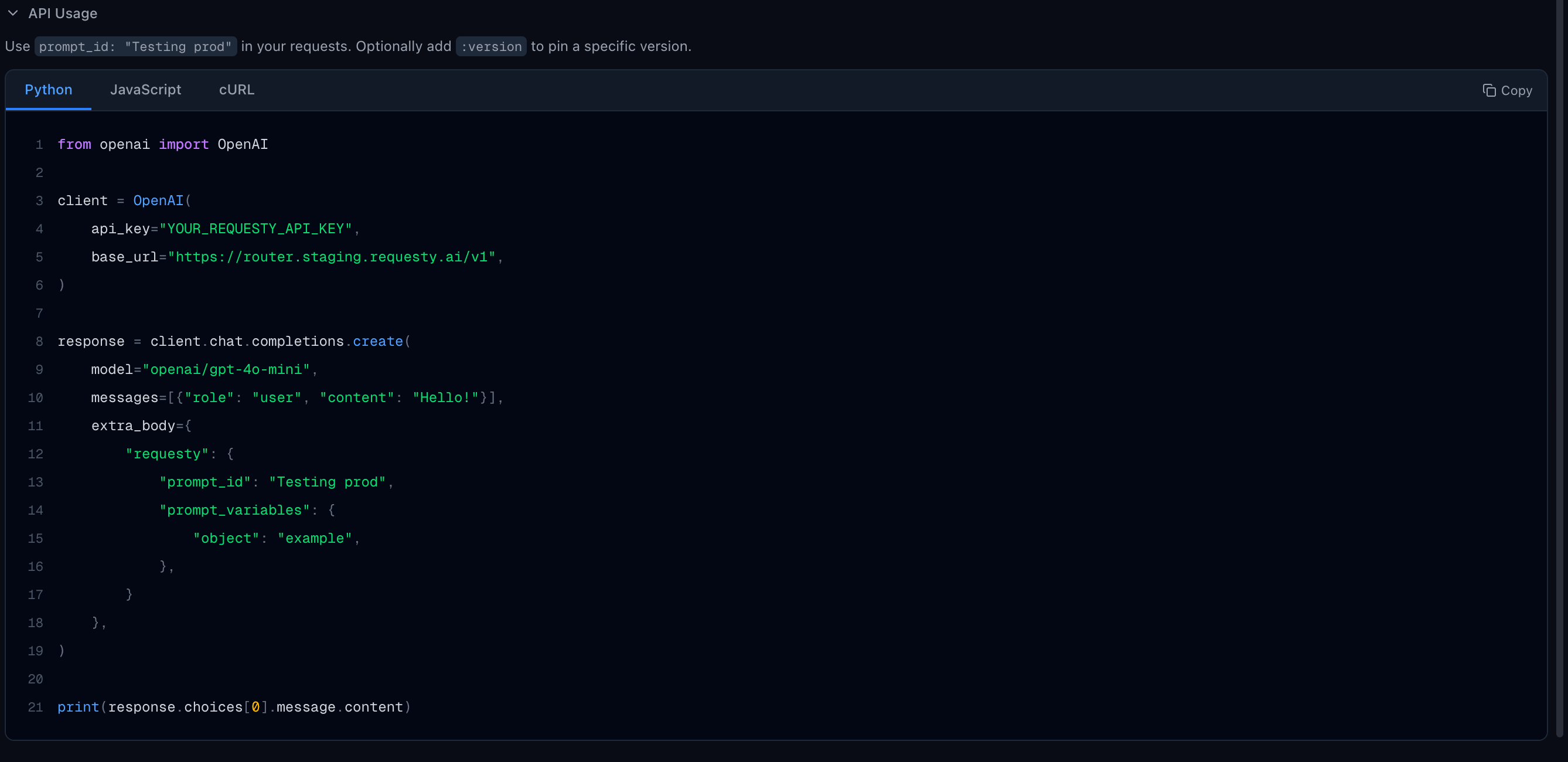
Every prompt includes a ready-to-use **API Usage** section at the bottom of the editor. Expand it to see code examples in Python, JavaScript, and cURL.
### Version Sidebar
Click the **N versions** button in the top bar to open the version sidebar. Each entry shows:
* Version number (e.g. `v2`)
* Creator email
* Timestamp
* A JSON or JSON Schema badge when the version has a response format
* **Compare with vN** link for the currently selected version
Click any version to load it in the editor. The selected version is highlighted with a blue border.
### Diff View
Click **Diff** in the top bar or **Compare with vN** in the version sidebar to see a line-by-line comparison between two versions. The diff viewer shows:
* A version indicator (`v1 → v2`) at the top
* Each changed message with a **Modified**, **Added**, or **Removed** badge
* Line-by-line additions (green `+`) and removals (red `-`) with line numbers
* Role changes displayed inline if the message role was modified
Switch between **Pretty**, **JSON**, and **Diff** views using the toggle in the top bar.
### JSON View
Click **JSON** to see the raw JSON representation of your prompt messages and settings. If model parameters or a response format are configured, they appear under `params`; valid JSON Schema text is shown as a parsed object.
## API Usage
Every prompt includes a ready-to-use **API Usage** section at the bottom of the editor. Expand it to see code examples in Python, JavaScript, and cURL.
 ### Using `prompt_id` in Requests
Instead of embedding long prompts in every API call, reference a prompt from your library by passing `prompt_id` (and optionally `prompt_variables`) inside the `requesty` extra body.
When a `prompt_id` is provided, the router:
1. Fetches the prompt template from your library
2. Renders each message with your `prompt_variables` (if any)
3. Prepends the rendered messages to the `messages` array in your request
4. Applies any model parameters and response format configured on the prompt
If your prompt template already contains every message you need, pass an **empty** `messages` array (`messages=[]`) so the request runs entirely from the template. The official OpenAI and Anthropic SDKs require the `messages` field to be present, so send `[]` rather than omitting it. Omitting the field entirely raises a client-side validation error.
### Version Pinning
* `"prompt_name"` uses the **latest** version
* `"prompt_name:version"` pins a **specific** version (e.g. `"my-prompt:3"`)
Use specific versions (e.g. `"my-prompt:1"`) in production for stability. Use the latest version (just `"my-prompt"`) during development so changes take effect immediately.
### Request Parameters
| Parameter | Type | Required | Description |
| ------------------ | ------ | -------- | ------------------------------------------------------------------------- |
| `prompt_id` | string | Yes | The prompt name, optionally with a version (`"name"` or `"name:version"`) |
| `prompt_variables` | object | No | Key-value pairs to substitute into `{{variable}}` placeholders |
## Code Examples
```python Python (OpenAI) theme={"dark"}
from openai import OpenAI
client = OpenAI(
api_key="YOUR_REQUESTY_API_KEY",
base_url="https://router.requesty.ai/v1"
)
response = client.chat.completions.create(
model="openai/gpt-4o-mini",
messages=[
{"role": "user", "content": "Hello!"}
],
extra_body={
"requesty": {
"prompt_id": "my-prompt",
"prompt_variables": {
"animal": "cat",
"country": "France"
}
}
}
)
print(response.choices[0].message.content)
```
```python Python (Anthropic) theme={"dark"}
import anthropic
client = anthropic.Anthropic(
api_key="YOUR_REQUESTY_API_KEY",
base_url="https://router.requesty.ai"
)
response = client.messages.create(
model="anthropic/claude-sonnet-4-20250514",
max_tokens=1024,
messages=[
{"role": "user", "content": "Explain recursion"}
],
extra_body={
"requesty": {
"prompt_id": "coding-assistant:2",
"prompt_variables": {
"language": "JavaScript"
}
}
}
)
print(response.content[0].text)
```
```javascript Node.js theme={"dark"}
import OpenAI from 'openai';
const client = new OpenAI({
apiKey: 'YOUR_REQUESTY_API_KEY',
baseURL: 'https://router.requesty.ai/v1',
});
const response = await client.chat.completions.create({
model: 'openai/gpt-4o-mini',
messages: [{ role: 'user', content: 'Hello!' }],
requesty: {
prompt_id: 'my-prompt',
prompt_variables: {
animal: 'cat',
country: 'France',
},
},
});
console.log(response.choices[0].message.content);
```
```bash cURL theme={"dark"}
curl --request POST \
--url https://router.requesty.ai/v1/chat/completions \
--header 'Authorization: Bearer YOUR_REQUESTY_API_KEY' \
--header 'Content-Type: application/json' \
--data '{
"model": "openai/gpt-4o-mini",
"messages": [
{
"role": "user",
"content": "Hello!"
}
],
"requesty": {
"prompt_id": "my-prompt",
"prompt_variables": {
"animal": "cat",
"country": "France"
}
}
}'
```
### Template-Only Requests
When the prompt template supplies all of the messages, pass an empty `messages` array so the request runs entirely from the template. Combine this with `prompt_variables` to fill in any `{{variable}}` placeholders.
```python Python (OpenAI) theme={"dark"}
response = client.chat.completions.create(
model="openai/gpt-4o-mini",
messages=[],
extra_body={
"requesty": {
"prompt_id": "Greeting",
"prompt_variables": {
"country": "England"
}
}
}
)
```
```python Python (Anthropic) theme={"dark"}
response = client.messages.create(
model="anthropic/claude-sonnet-4-20250514",
max_tokens=256,
messages=[],
extra_body={
"requesty": {
"prompt_id": "Greeting",
"prompt_variables": {
"country": "England"
}
}
}
)
```
```bash cURL theme={"dark"}
curl --request POST \
--url https://router.requesty.ai/v1/chat/completions \
--header 'Authorization: Bearer YOUR_REQUESTY_API_KEY' \
--header 'Content-Type: application/json' \
--data '{
"model": "openai/gpt-4o-mini",
"messages": [],
"requesty": {
"prompt_id": "Greeting",
"prompt_variables": {
"country": "England"
}
}
}'
```
## How Prompt Settings Are Applied
When a prompt with configured settings is used in a request, the router applies them in this order:
1. Your API request is parsed with its original parameters (temperature, max\_tokens, etc.)
2. The prompt template messages are fetched, rendered with variables, and prepended to your messages
3. Any model parameters or response format set on the prompt **override** the corresponding values in your request
This means you can set `temperature: 0.8`, `reasoning_effort: high`, and a `json_schema` response format on a prompt, and every request using that prompt will inherit those settings without any client-side changes. Settings not set on the prompt are left unchanged from your request.
## Prompt Lifecycle
### Creating a Prompt
1. Click **+ Create** from the prompts list
2. Enter a name (this becomes the `prompt_id` used in API requests)
3. Add one or more messages with system or user roles
4. Optionally configure model parameters or a response format
5. Add tags for organization
6. Click **Create** to save
### Updating a Prompt
1. Open an existing prompt from the list
2. Edit messages, parameters, response format, or tags
3. Click **Save** to create a new version
4. The previous version remains accessible in the version history
### Deleting a Prompt
Click **Delete** to remove a prompt and all its versions. This action cannot be undone. Any API requests referencing the deleted `prompt_id` will return an error.
## Quick Start
1. Create a prompt in the [Prompt Library](https://app.requesty.ai/prompts)
2. Add messages with your instructions, optionally using `{{variable}}` placeholders
3. Configure model parameters or a response format if needed
4. Note the prompt name (shown as the copyable Prompt ID)
5. Pass `prompt_id` in your API requests via the `requesty` extra body
6. Check your [logs](https://app.requesty.ai/logs) to see the rendered prompt in action
### Using `prompt_id` in Requests
Instead of embedding long prompts in every API call, reference a prompt from your library by passing `prompt_id` (and optionally `prompt_variables`) inside the `requesty` extra body.
When a `prompt_id` is provided, the router:
1. Fetches the prompt template from your library
2. Renders each message with your `prompt_variables` (if any)
3. Prepends the rendered messages to the `messages` array in your request
4. Applies any model parameters and response format configured on the prompt
If your prompt template already contains every message you need, pass an **empty** `messages` array (`messages=[]`) so the request runs entirely from the template. The official OpenAI and Anthropic SDKs require the `messages` field to be present, so send `[]` rather than omitting it. Omitting the field entirely raises a client-side validation error.
### Version Pinning
* `"prompt_name"` uses the **latest** version
* `"prompt_name:version"` pins a **specific** version (e.g. `"my-prompt:3"`)
Use specific versions (e.g. `"my-prompt:1"`) in production for stability. Use the latest version (just `"my-prompt"`) during development so changes take effect immediately.
### Request Parameters
| Parameter | Type | Required | Description |
| ------------------ | ------ | -------- | ------------------------------------------------------------------------- |
| `prompt_id` | string | Yes | The prompt name, optionally with a version (`"name"` or `"name:version"`) |
| `prompt_variables` | object | No | Key-value pairs to substitute into `{{variable}}` placeholders |
## Code Examples
```python Python (OpenAI) theme={"dark"}
from openai import OpenAI
client = OpenAI(
api_key="YOUR_REQUESTY_API_KEY",
base_url="https://router.requesty.ai/v1"
)
response = client.chat.completions.create(
model="openai/gpt-4o-mini",
messages=[
{"role": "user", "content": "Hello!"}
],
extra_body={
"requesty": {
"prompt_id": "my-prompt",
"prompt_variables": {
"animal": "cat",
"country": "France"
}
}
}
)
print(response.choices[0].message.content)
```
```python Python (Anthropic) theme={"dark"}
import anthropic
client = anthropic.Anthropic(
api_key="YOUR_REQUESTY_API_KEY",
base_url="https://router.requesty.ai"
)
response = client.messages.create(
model="anthropic/claude-sonnet-4-20250514",
max_tokens=1024,
messages=[
{"role": "user", "content": "Explain recursion"}
],
extra_body={
"requesty": {
"prompt_id": "coding-assistant:2",
"prompt_variables": {
"language": "JavaScript"
}
}
}
)
print(response.content[0].text)
```
```javascript Node.js theme={"dark"}
import OpenAI from 'openai';
const client = new OpenAI({
apiKey: 'YOUR_REQUESTY_API_KEY',
baseURL: 'https://router.requesty.ai/v1',
});
const response = await client.chat.completions.create({
model: 'openai/gpt-4o-mini',
messages: [{ role: 'user', content: 'Hello!' }],
requesty: {
prompt_id: 'my-prompt',
prompt_variables: {
animal: 'cat',
country: 'France',
},
},
});
console.log(response.choices[0].message.content);
```
```bash cURL theme={"dark"}
curl --request POST \
--url https://router.requesty.ai/v1/chat/completions \
--header 'Authorization: Bearer YOUR_REQUESTY_API_KEY' \
--header 'Content-Type: application/json' \
--data '{
"model": "openai/gpt-4o-mini",
"messages": [
{
"role": "user",
"content": "Hello!"
}
],
"requesty": {
"prompt_id": "my-prompt",
"prompt_variables": {
"animal": "cat",
"country": "France"
}
}
}'
```
### Template-Only Requests
When the prompt template supplies all of the messages, pass an empty `messages` array so the request runs entirely from the template. Combine this with `prompt_variables` to fill in any `{{variable}}` placeholders.
```python Python (OpenAI) theme={"dark"}
response = client.chat.completions.create(
model="openai/gpt-4o-mini",
messages=[],
extra_body={
"requesty": {
"prompt_id": "Greeting",
"prompt_variables": {
"country": "England"
}
}
}
)
```
```python Python (Anthropic) theme={"dark"}
response = client.messages.create(
model="anthropic/claude-sonnet-4-20250514",
max_tokens=256,
messages=[],
extra_body={
"requesty": {
"prompt_id": "Greeting",
"prompt_variables": {
"country": "England"
}
}
}
)
```
```bash cURL theme={"dark"}
curl --request POST \
--url https://router.requesty.ai/v1/chat/completions \
--header 'Authorization: Bearer YOUR_REQUESTY_API_KEY' \
--header 'Content-Type: application/json' \
--data '{
"model": "openai/gpt-4o-mini",
"messages": [],
"requesty": {
"prompt_id": "Greeting",
"prompt_variables": {
"country": "England"
}
}
}'
```
## How Prompt Settings Are Applied
When a prompt with configured settings is used in a request, the router applies them in this order:
1. Your API request is parsed with its original parameters (temperature, max\_tokens, etc.)
2. The prompt template messages are fetched, rendered with variables, and prepended to your messages
3. Any model parameters or response format set on the prompt **override** the corresponding values in your request
This means you can set `temperature: 0.8`, `reasoning_effort: high`, and a `json_schema` response format on a prompt, and every request using that prompt will inherit those settings without any client-side changes. Settings not set on the prompt are left unchanged from your request.
## Prompt Lifecycle
### Creating a Prompt
1. Click **+ Create** from the prompts list
2. Enter a name (this becomes the `prompt_id` used in API requests)
3. Add one or more messages with system or user roles
4. Optionally configure model parameters or a response format
5. Add tags for organization
6. Click **Create** to save
### Updating a Prompt
1. Open an existing prompt from the list
2. Edit messages, parameters, response format, or tags
3. Click **Save** to create a new version
4. The previous version remains accessible in the version history
### Deleting a Prompt
Click **Delete** to remove a prompt and all its versions. This action cannot be undone. Any API requests referencing the deleted `prompt_id` will return an error.
## Quick Start
1. Create a prompt in the [Prompt Library](https://app.requesty.ai/prompts)
2. Add messages with your instructions, optionally using `{{variable}}` placeholders
3. Configure model parameters or a response format if needed
4. Note the prompt name (shown as the copyable Prompt ID)
5. Pass `prompt_id` in your API requests via the `requesty` extra body
6. Check your [logs](https://app.requesty.ai/logs) to see the rendered prompt in action