> ## Documentation Index
> Fetch the complete documentation index at: https://docs.requesty.ai/llms.txt
> Use this file to discover all available pages before exploring further.
# Overview
> Connect AI coding tools to any MCP server through Requesty's unified gateway
# MCP Gateway
The MCP (Model Context Protocol) Gateway enables AI coding assistants like **Claude Code**, **Cursor**, and **Roo Code** to securely connect to MCP servers through Requesty's unified API, providing tool access, authentication management, and comprehensive analytics.
**[Configure MCP gateway](https://app.requesty.ai/mcp-gateway)** in the Requesty Console.
## What is MCP?
The **Model Context Protocol** is an open standard that enables AI assistants to interact with external tools and services. Through MCP, your AI coding assistant can:
* 🔧 Access databases and execute queries
* 📁 Manage files and repositories
* 🌐 Interact with web services and APIs
* 🤖 Use specialized AI tools and models
* 📊 Connect to productivity platforms (Notion, Linear, Asana)
## Key Benefits
Works with Claude Code, Cursor, Roo Code, and any MCP-compatible AI tool
Single dashboard to manage all MCP servers and authentication across your organization
AES-256 encryption, organization isolation, and granular access controls
## How It Works
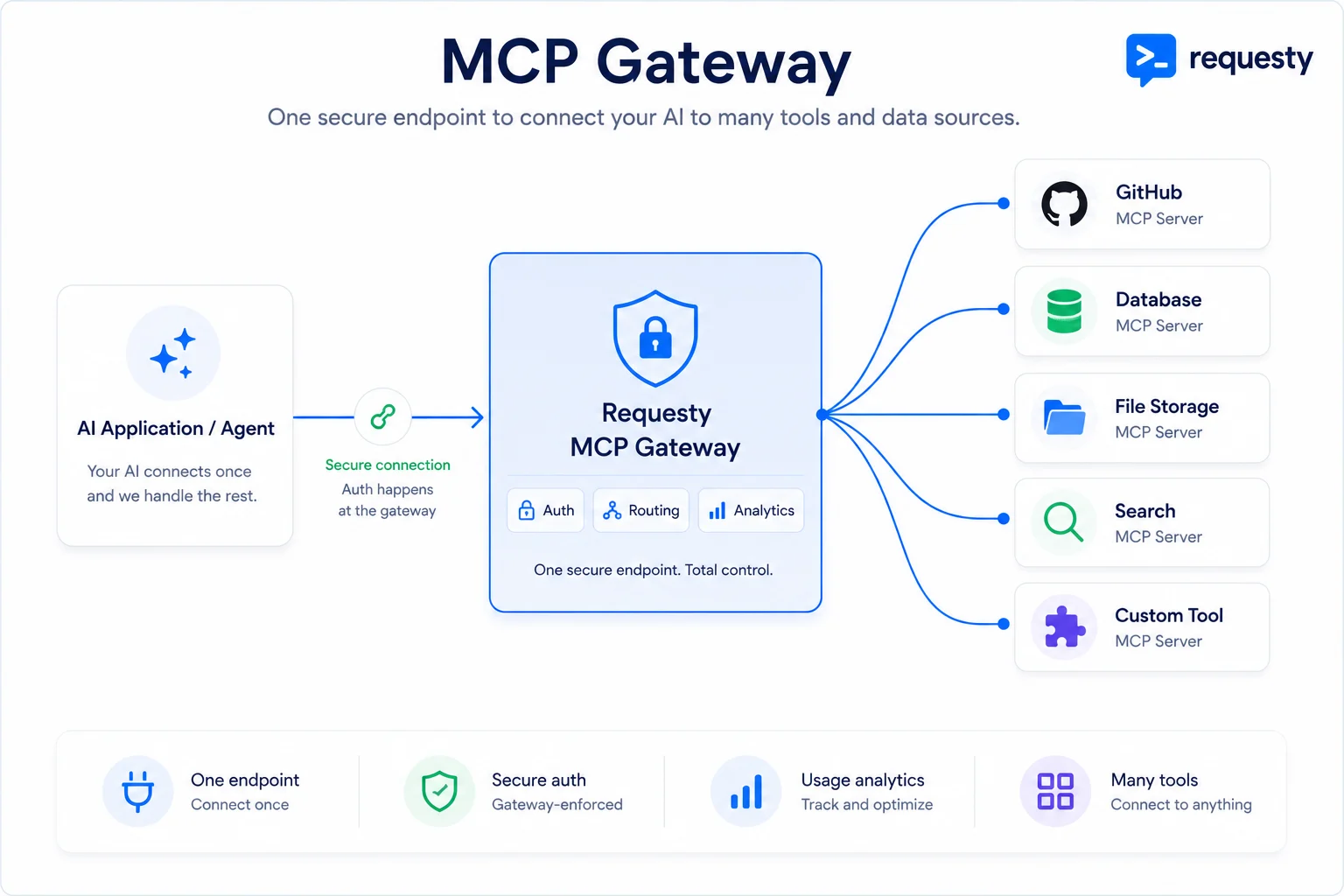 1. **Register MCP Servers**: Admins configure MCP server URLs and authentication
2. **Whitelist Tools**: Select specific tools from each server to make available
3. **Manage Keys**: Configure authentication (org-wide or per-user)
4. **Use Tools**: AI assistants automatically discover and use available tools
5. **Monitor Usage**: Track performance, costs, and usage patterns
## Feature Overview
Register, configure, and manage MCP servers for your organization
Enterprise users can manage their personal API keys for MCP servers
Monitor and analyze MCP server usage, performance, and user activity
Connect Claude Code, Cursor, Roo Code and other AI assistants
## Authentication Models
Requesty supports two authentication approaches depending on your plan:
### Standard Plan: Organization-Wide Keys
For non-enterprise organizations, authentication is managed at the organization level:
Organization admins configure API keys for each MCP server
All users in the organization share the same authentication
Single point of configuration for the entire team
**Best for**: Teams using internal tools, shared services, or organization-owned API keys
### Enterprise Plan: Per-User Keys
Enterprise organizations can enable individual authentication:
Admins register servers and define required authentication headers
Each user provides their own API keys through the dashboard
Users authenticate with their personal credentials
**Best for**: External services requiring personal API keys (GitHub, Linear, Notion)
**Important Enterprise Distinction**:
* Admins can choose whether users are allowed to add their own keys
* If disabled, only organization-wide keys are used (same as Standard plan)
* This provides flexibility between convenience and security
## Quick Start
### 1. Enable MCP Gateway
Navigate to **Settings → Integrations → MCP Gateway** in your Requesty dashboard.
### 2. Add Your First Server
Choose from pre-configured templates for popular services:
* **GitHub**: Repository management and code search
* **Notion**: Workspace and content management
* **Linear**: Issue tracking and project management
* **Context7**: Advanced AI context management
* **Asana**: Task and project coordination
Configure a custom MCP server:
```json theme={"dark"}
{
"name": "my-mcp-server",
"url": "https://api.example.com/mcp",
"type": "streamable-http",
"headers": {
"Authorization": "Bearer {{API_KEY}}"
}
}
```
### 3. Explore and Select Tools
Click **Explore Server** to discover available tools, then select which ones to enable:
```json theme={"dark"}
{
"tools": [
{
"name": "database_query",
"description": "Execute SQL queries on the database"
},
{
"name": "file_search",
"description": "Search for files in the repository"
},
{
"name": "create_issue",
"description": "Create a new issue in the tracker"
}
]
}
```
### 4. Configure Authentication
Set organization-wide authentication in the server configuration:
```json theme={"dark"}
{
"headers": {
"Authorization": "Bearer sk-org-xxxxx"
}
}
```
Users add their personal keys via **Manage Keys**:
1. Click the key icon next to the server
2. Enter personal API key
3. Save securely (encrypted with AES-256)
### 5. Connect Your AI Tool
Configure your AI coding assistant to use Requesty's MCP gateway:
Claude Code automatically discovers MCP servers through your Requesty API key.
No additional configuration needed.
In Cursor settings, add Requesty as your MCP provider:
```json theme={"dark"}
{
"mcp": {
"provider": "requesty",
"apiKey": "YOUR_REQUESTY_API_KEY"
}
}
```
Configure Roo Code to use Requesty's MCP endpoint:
```json theme={"dark"}
{
"mcp": {
"endpoint": "https://router.requesty.ai/mcp",
"auth": "Bearer YOUR_REQUESTY_API_KEY"
}
}
```
## Supported MCP Servers
### Popular Templates
* **URL**: `https://api.githubcopilot.com/mcp/`
* **Features**: Repository management, code search, pull requests, issue tracking
* **Authentication**: Personal GitHub token required
* **URL**: `https://mcp.notion.com/mcp`
* **Features**: Page management, database queries, content creation
* **Authentication**: Notion integration token required
* **URL**: `https://mcp.linear.app/sse`
* **Features**: Issue management, project tracking, team collaboration
* **Authentication**: Linear API key required
* **URL**: `https://mcp.context7.com/mcp`
* **Features**: AI context management, knowledge graphs, semantic search
* **Authentication**: Context7 API key required
### Protocol Support
Currently, the MCP Gateway supports **HTTP-based MCP servers** (streamable-http and SSE protocols). Support for **stdio-based servers** is coming soon.
| Protocol | Status | Description |
| ----------------- | -------------- | ---------------------------------------- |
| `streamable-http` | ✅ Supported | Standard HTTP with JSON streaming |
| `sse` | ✅ Supported | Server-Sent Events for real-time updates |
| `stdio` | 🚧 Coming Soon | Direct process communication |
## Analytics & Monitoring
Track your MCP usage with comprehensive analytics:
### Key Metrics
Total MCP server requests and trends over time
Response times for each server and tool
Percentage of successful tool executions
Most frequently used tools and servers
### Usage Dashboard
Monitor real-time and historical MCP usage through the intuitive web dashboard:
* **Real-time Metrics**: Live monitoring of active MCP requests and server status
* **Historical Analysis**: Trend analysis over time periods (24h, 7d, 30d)
* **Server Breakdown**: Usage statistics per MCP server and tool
* **Performance Insights**: Latency distribution and error rate tracking
* **User Activity**: Individual usage patterns (Enterprise only)
## Security & Compliance
### Encryption
* **At Rest**: All API keys and sensitive headers encrypted with AES-256
* **In Transit**: TLS 1.3 for all MCP communications
* **Key Storage**: Encrypted database with automatic key rotation
### Access Control
* Organization admins manage all MCP servers
* Users can view available tools but cannot modify
* Shared authentication across the organization
* Granular role-based access control (RBAC)
* Per-user authentication keys
* Admin control over user key permissions
* Audit logs for all configuration changes
### Data Isolation
* Complete separation between organizations
* No cross-organization data access
* Isolated request routing and analytics
## Best Practices
* Only enable tools your team actually needs
* Review tool descriptions and permissions carefully
* Test tools in a development environment first
* Regularly audit enabled tools for security
* Rotate API keys regularly (every 90 days)
* Use separate keys for development and production
* Never share personal API keys
* Immediately revoke compromised keys
* Monitor latency metrics for each server
* Disable unused tools to reduce overhead
* Use caching for frequently accessed data
* Configure appropriate timeout values
* Review MCP server documentation before connecting
* Validate server certificates and URLs
* Use environment-specific configurations
* Enable audit logging for compliance
## Troubleshooting
### Common Issues
**Symptoms**: Cannot discover tools from MCP server
**Solutions**:
* Verify the server URL is correct
* Check authentication headers are properly configured
* Ensure the server supports MCP protocol
* Test connectivity with curl or Postman
**Symptoms**: Registered tools don't show in Claude/Cursor
**Solutions**:
* Confirm tools are selected and saved
* Restart your AI assistant
* Check your Requesty API key is valid
* Verify organization permissions
**Symptoms**: 401/403 errors when using tools
**Solutions**:
* Verify API keys are correctly entered
* Check if keys have required permissions
* For enterprise: ensure user keys are configured
* Confirm keys haven't expired
## Plan Features
MCP Gateway usage is included in your Requesty plan:
| Feature | Standard | Enterprise |
| ----------------------- | ----------- | ----------- |
| MCP Server Registration | ✅ Unlimited | ✅ Unlimited |
| Organization-wide Keys | ✅ | ✅ |
| Per-user Keys | ❌ | ✅ |
| Tool Whitelisting | ✅ | ✅ |
| Basic Analytics | ✅ | ✅ |
| Advanced Analytics | ❌ | ✅ |
| Audit Logs | ❌ | ✅ |
| Custom RBAC | ❌ | ✅ |
MCP requests count toward your regular API usage. There are no additional charges for using the MCP Gateway.
## Coming Soon
* 🔄 **Stdio Protocol Support**: Direct process-based MCP servers
* 🎯 **Smart Tool Recommendations**: AI-powered tool suggestions
* 📊 **Cost Allocation**: Per-user and per-project MCP cost tracking
* 🔐 **Secrets Management**: Integrated vault for API keys
* 🌍 **Global Edge Deployment**: Reduced latency worldwide
***
Contact our support team at [support@requesty.ai](mailto:support@requesty.ai) or visit our [GitHub repository](https://github.com/requesty/mcp-gateway) for examples and updates.
1. **Register MCP Servers**: Admins configure MCP server URLs and authentication
2. **Whitelist Tools**: Select specific tools from each server to make available
3. **Manage Keys**: Configure authentication (org-wide or per-user)
4. **Use Tools**: AI assistants automatically discover and use available tools
5. **Monitor Usage**: Track performance, costs, and usage patterns
## Feature Overview
Register, configure, and manage MCP servers for your organization
Enterprise users can manage their personal API keys for MCP servers
Monitor and analyze MCP server usage, performance, and user activity
Connect Claude Code, Cursor, Roo Code and other AI assistants
## Authentication Models
Requesty supports two authentication approaches depending on your plan:
### Standard Plan: Organization-Wide Keys
For non-enterprise organizations, authentication is managed at the organization level:
Organization admins configure API keys for each MCP server
All users in the organization share the same authentication
Single point of configuration for the entire team
**Best for**: Teams using internal tools, shared services, or organization-owned API keys
### Enterprise Plan: Per-User Keys
Enterprise organizations can enable individual authentication:
Admins register servers and define required authentication headers
Each user provides their own API keys through the dashboard
Users authenticate with their personal credentials
**Best for**: External services requiring personal API keys (GitHub, Linear, Notion)
**Important Enterprise Distinction**:
* Admins can choose whether users are allowed to add their own keys
* If disabled, only organization-wide keys are used (same as Standard plan)
* This provides flexibility between convenience and security
## Quick Start
### 1. Enable MCP Gateway
Navigate to **Settings → Integrations → MCP Gateway** in your Requesty dashboard.
### 2. Add Your First Server
Choose from pre-configured templates for popular services:
* **GitHub**: Repository management and code search
* **Notion**: Workspace and content management
* **Linear**: Issue tracking and project management
* **Context7**: Advanced AI context management
* **Asana**: Task and project coordination
Configure a custom MCP server:
```json theme={"dark"}
{
"name": "my-mcp-server",
"url": "https://api.example.com/mcp",
"type": "streamable-http",
"headers": {
"Authorization": "Bearer {{API_KEY}}"
}
}
```
### 3. Explore and Select Tools
Click **Explore Server** to discover available tools, then select which ones to enable:
```json theme={"dark"}
{
"tools": [
{
"name": "database_query",
"description": "Execute SQL queries on the database"
},
{
"name": "file_search",
"description": "Search for files in the repository"
},
{
"name": "create_issue",
"description": "Create a new issue in the tracker"
}
]
}
```
### 4. Configure Authentication
Set organization-wide authentication in the server configuration:
```json theme={"dark"}
{
"headers": {
"Authorization": "Bearer sk-org-xxxxx"
}
}
```
Users add their personal keys via **Manage Keys**:
1. Click the key icon next to the server
2. Enter personal API key
3. Save securely (encrypted with AES-256)
### 5. Connect Your AI Tool
Configure your AI coding assistant to use Requesty's MCP gateway:
Claude Code automatically discovers MCP servers through your Requesty API key.
No additional configuration needed.
In Cursor settings, add Requesty as your MCP provider:
```json theme={"dark"}
{
"mcp": {
"provider": "requesty",
"apiKey": "YOUR_REQUESTY_API_KEY"
}
}
```
Configure Roo Code to use Requesty's MCP endpoint:
```json theme={"dark"}
{
"mcp": {
"endpoint": "https://router.requesty.ai/mcp",
"auth": "Bearer YOUR_REQUESTY_API_KEY"
}
}
```
## Supported MCP Servers
### Popular Templates
* **URL**: `https://api.githubcopilot.com/mcp/`
* **Features**: Repository management, code search, pull requests, issue tracking
* **Authentication**: Personal GitHub token required
* **URL**: `https://mcp.notion.com/mcp`
* **Features**: Page management, database queries, content creation
* **Authentication**: Notion integration token required
* **URL**: `https://mcp.linear.app/sse`
* **Features**: Issue management, project tracking, team collaboration
* **Authentication**: Linear API key required
* **URL**: `https://mcp.context7.com/mcp`
* **Features**: AI context management, knowledge graphs, semantic search
* **Authentication**: Context7 API key required
### Protocol Support
Currently, the MCP Gateway supports **HTTP-based MCP servers** (streamable-http and SSE protocols). Support for **stdio-based servers** is coming soon.
| Protocol | Status | Description |
| ----------------- | -------------- | ---------------------------------------- |
| `streamable-http` | ✅ Supported | Standard HTTP with JSON streaming |
| `sse` | ✅ Supported | Server-Sent Events for real-time updates |
| `stdio` | 🚧 Coming Soon | Direct process communication |
## Analytics & Monitoring
Track your MCP usage with comprehensive analytics:
### Key Metrics
Total MCP server requests and trends over time
Response times for each server and tool
Percentage of successful tool executions
Most frequently used tools and servers
### Usage Dashboard
Monitor real-time and historical MCP usage through the intuitive web dashboard:
* **Real-time Metrics**: Live monitoring of active MCP requests and server status
* **Historical Analysis**: Trend analysis over time periods (24h, 7d, 30d)
* **Server Breakdown**: Usage statistics per MCP server and tool
* **Performance Insights**: Latency distribution and error rate tracking
* **User Activity**: Individual usage patterns (Enterprise only)
## Security & Compliance
### Encryption
* **At Rest**: All API keys and sensitive headers encrypted with AES-256
* **In Transit**: TLS 1.3 for all MCP communications
* **Key Storage**: Encrypted database with automatic key rotation
### Access Control
* Organization admins manage all MCP servers
* Users can view available tools but cannot modify
* Shared authentication across the organization
* Granular role-based access control (RBAC)
* Per-user authentication keys
* Admin control over user key permissions
* Audit logs for all configuration changes
### Data Isolation
* Complete separation between organizations
* No cross-organization data access
* Isolated request routing and analytics
## Best Practices
* Only enable tools your team actually needs
* Review tool descriptions and permissions carefully
* Test tools in a development environment first
* Regularly audit enabled tools for security
* Rotate API keys regularly (every 90 days)
* Use separate keys for development and production
* Never share personal API keys
* Immediately revoke compromised keys
* Monitor latency metrics for each server
* Disable unused tools to reduce overhead
* Use caching for frequently accessed data
* Configure appropriate timeout values
* Review MCP server documentation before connecting
* Validate server certificates and URLs
* Use environment-specific configurations
* Enable audit logging for compliance
## Troubleshooting
### Common Issues
**Symptoms**: Cannot discover tools from MCP server
**Solutions**:
* Verify the server URL is correct
* Check authentication headers are properly configured
* Ensure the server supports MCP protocol
* Test connectivity with curl or Postman
**Symptoms**: Registered tools don't show in Claude/Cursor
**Solutions**:
* Confirm tools are selected and saved
* Restart your AI assistant
* Check your Requesty API key is valid
* Verify organization permissions
**Symptoms**: 401/403 errors when using tools
**Solutions**:
* Verify API keys are correctly entered
* Check if keys have required permissions
* For enterprise: ensure user keys are configured
* Confirm keys haven't expired
## Plan Features
MCP Gateway usage is included in your Requesty plan:
| Feature | Standard | Enterprise |
| ----------------------- | ----------- | ----------- |
| MCP Server Registration | ✅ Unlimited | ✅ Unlimited |
| Organization-wide Keys | ✅ | ✅ |
| Per-user Keys | ❌ | ✅ |
| Tool Whitelisting | ✅ | ✅ |
| Basic Analytics | ✅ | ✅ |
| Advanced Analytics | ❌ | ✅ |
| Audit Logs | ❌ | ✅ |
| Custom RBAC | ❌ | ✅ |
MCP requests count toward your regular API usage. There are no additional charges for using the MCP Gateway.
## Coming Soon
* 🔄 **Stdio Protocol Support**: Direct process-based MCP servers
* 🎯 **Smart Tool Recommendations**: AI-powered tool suggestions
* 📊 **Cost Allocation**: Per-user and per-project MCP cost tracking
* 🔐 **Secrets Management**: Integrated vault for API keys
* 🌍 **Global Edge Deployment**: Reduced latency worldwide
***
Contact our support team at [support@requesty.ai](mailto:support@requesty.ai) or visit our [GitHub repository](https://github.com/requesty/mcp-gateway) for examples and updates.