> ## Documentation Index
> Fetch the complete documentation index at: https://docs.requesty.ai/llms.txt
> Use this file to discover all available pages before exploring further.
# Access Lists
> Reusable named allowlists of approved models that you can attach to groups and API keys
Access lists are reusable, named collections of model IDs that you create once at the organization level and then attach to groups and API keys. They let you express policies like "Engineering can use GPT and Claude reasoning models" or "Production agent keys can only call our two cheapest fallback models" without duplicating the model list across every key.
**[Set up access lists](https://app.requesty.ai/admin-panel/access-lists)** in the Requesty Console.
Common use cases:
* **Per team policies.** Attach a list to a group so every member inherits the same model allowlist.
* **Per workload policies.** Attach a stricter list to a single production API key while leaving exploratory keys open.
* **Compliance.** Restrict keys or groups to models that meet your data residency or vendor requirements.
* **Cost control.** Block expensive frontier models from low priority workloads.
Open Access Lists in the Admin Panel →
## Create an access list
Everything for access lists lives in *Admin Panel > Access Lists*. Each list card shows how many groups and API keys it is currently attached to, plus a preview of the models it contains.
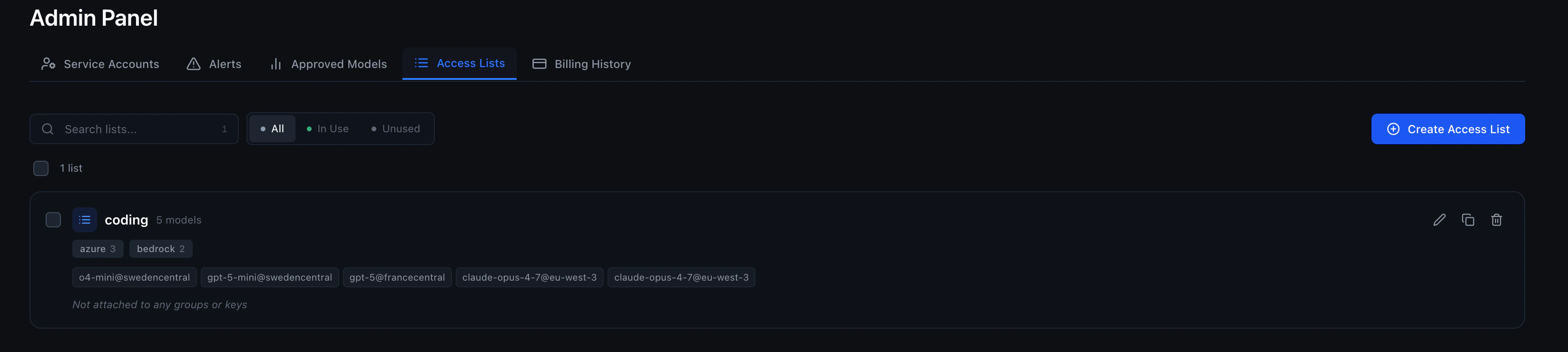 Click *Create Access List* in the top right. Give the list a descriptive name (for example, *Production agents*, *Reasoning only*, *EU residency*) and tick the models to include. You can search by provider or model name and use *Select all* to grab every model in a provider section in one click.
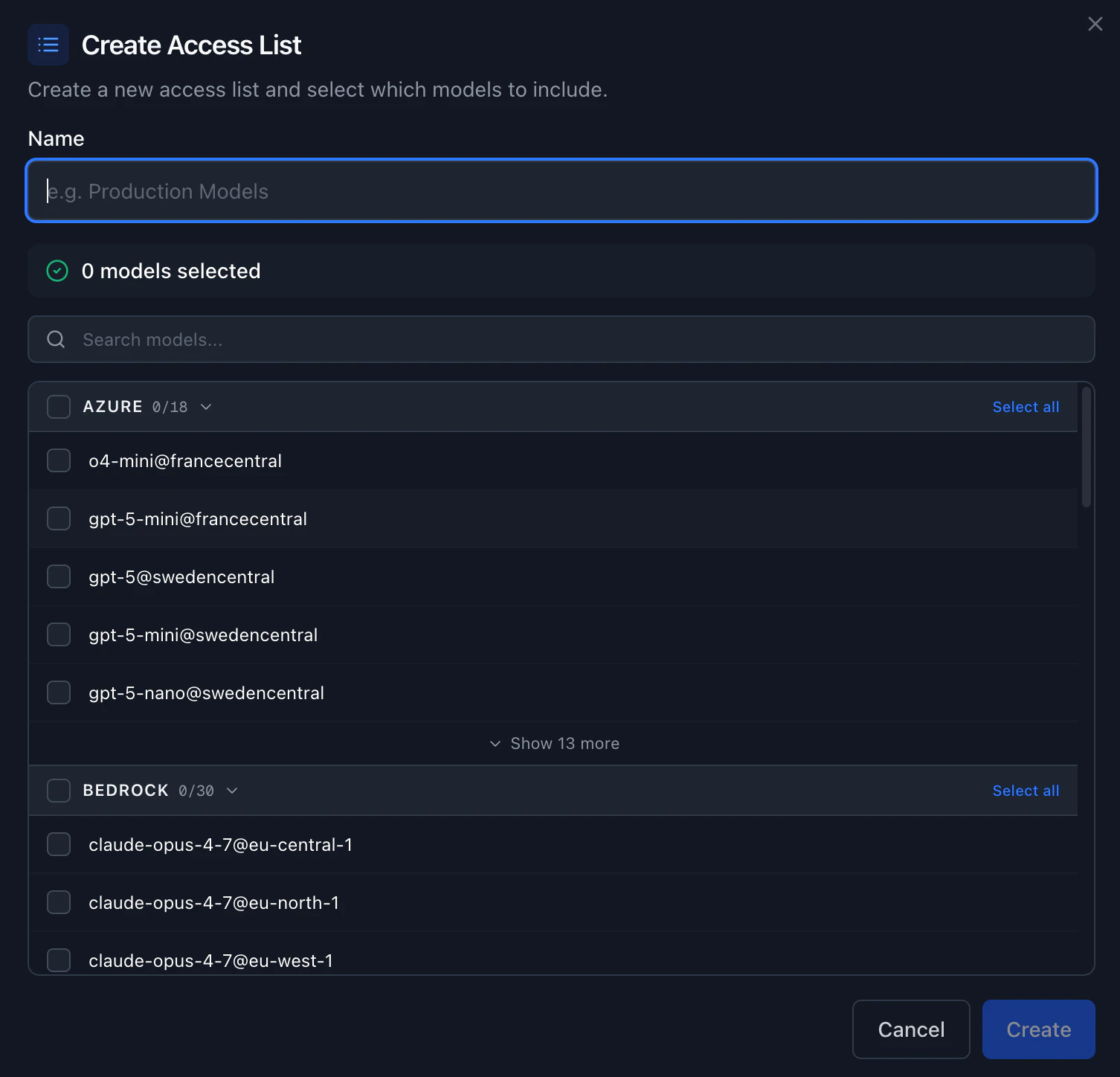 You can also mark the list as **Restricted**. See [Restricted access lists](#restricted-access-lists) below for details on what this means.
Click *Create* to save. The list is now available to attach to any group or API key in your organization.
An access list lives at the organization scope. The same list can be attached to many groups and many API keys at once. Updating the list updates the policy for every attached resource.
### Edit, duplicate, or delete a list
From the card on the Access Lists page:
* **Edit** the name and the set of models. Changes take effect immediately for every group and API key that has this list attached.
* **Duplicate** the list to use it as a starting point for a new policy.
* **Delete** the list. Any group or API key that had this list attached falls back to the next layer (group list, then group default access list, then organization approved models).
## Restricted access lists
When you create or edit an access list, you can mark it as **Restricted**. Restricted access lists can only be attached to groups and API keys by **organization admins**. Group admins and regular members cannot attach a restricted list.
Non-restricted access lists can be attached by group admins as well as organization admins.
Use restricted lists when you need tight admin control over a policy — for example, a production access list that only the platform team should be able to assign. Non-restricted lists are useful for policies that group admins should be able to self-serve, such as letting team leads pick the right model set for their group.
## Group default access list
You can set a **group default access list** at the organization level. This access list is automatically applied to any group that does not have its own access list explicitly attached.
Set or clear the default in *Admin Panel > Access Lists* or via the Management API. When a default is set:
* Groups **with** an explicit access list continue using their own list.
* Groups **without** an access list fall back to the group default access list instead of falling through to the organization [Approved Models](/features/approved-models).
* If the default is cleared, groups without an explicit list fall back to Approved Models as before.
This is useful when you want every group to have a baseline model policy without manually attaching a list to each one.
## Attach an access list to a group
When an access list is attached to a group, every API key that belongs to that group inherits the list (unless that API key has its own access list, which overrides the group).
In *Admin Panel > Groups*, expand the group you want to restrict. Each group has an *Access List* section. Click *Manage*, pick one of your access lists from the dropdown (or *None* to clear it), and save. The change applies on the next request through any API key in this group.
## Attach an access list to an API key
You can attach an access list when you create a new API key, or attach (or change) one later on an existing key. A list attached directly to a key overrides any group list, so use this when you want a single workload (for example, a production agent) to be more restricted than the rest of the group.
**When creating a key.** Go to *API Keys*, click *Create API Key*, and pick a list in the *Access List* field. Leave it as *No access list (no model restrictions)* if you do not want to restrict the key.
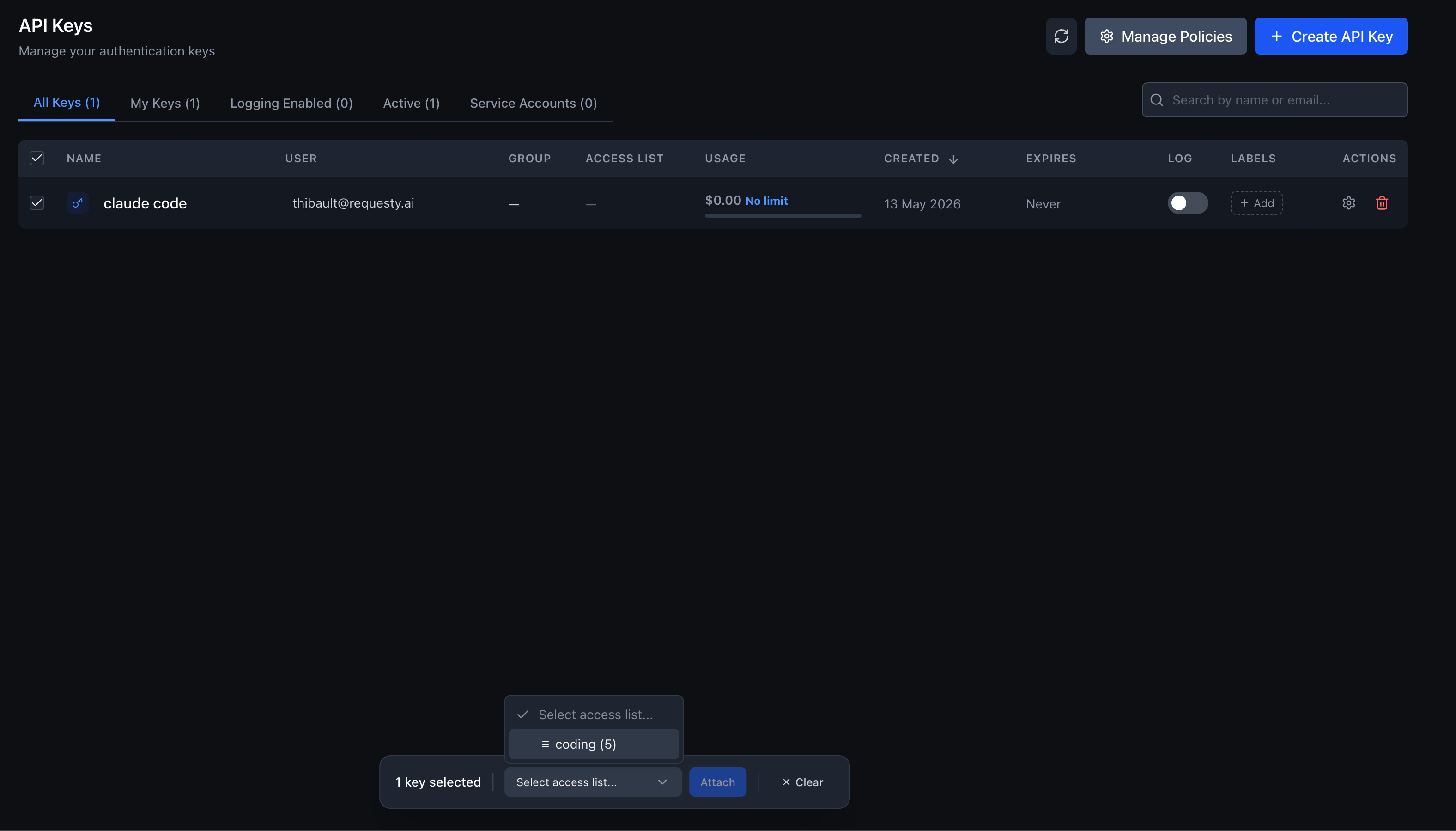
**On existing keys.** In the *API Keys* page, select one or more rows. The bulk action bar at the bottom of the page lets you pick an access list from the dropdown and click *Attach*. Attaching the same list to many keys at once is the fastest way to roll out a new policy.
You can also mark the list as **Restricted**. See [Restricted access lists](#restricted-access-lists) below for details on what this means.
Click *Create* to save. The list is now available to attach to any group or API key in your organization.
An access list lives at the organization scope. The same list can be attached to many groups and many API keys at once. Updating the list updates the policy for every attached resource.
### Edit, duplicate, or delete a list
From the card on the Access Lists page:
* **Edit** the name and the set of models. Changes take effect immediately for every group and API key that has this list attached.
* **Duplicate** the list to use it as a starting point for a new policy.
* **Delete** the list. Any group or API key that had this list attached falls back to the next layer (group list, then group default access list, then organization approved models).
## Restricted access lists
When you create or edit an access list, you can mark it as **Restricted**. Restricted access lists can only be attached to groups and API keys by **organization admins**. Group admins and regular members cannot attach a restricted list.
Non-restricted access lists can be attached by group admins as well as organization admins.
Use restricted lists when you need tight admin control over a policy — for example, a production access list that only the platform team should be able to assign. Non-restricted lists are useful for policies that group admins should be able to self-serve, such as letting team leads pick the right model set for their group.
## Group default access list
You can set a **group default access list** at the organization level. This access list is automatically applied to any group that does not have its own access list explicitly attached.
Set or clear the default in *Admin Panel > Access Lists* or via the Management API. When a default is set:
* Groups **with** an explicit access list continue using their own list.
* Groups **without** an access list fall back to the group default access list instead of falling through to the organization [Approved Models](/features/approved-models).
* If the default is cleared, groups without an explicit list fall back to Approved Models as before.
This is useful when you want every group to have a baseline model policy without manually attaching a list to each one.
## Attach an access list to a group
When an access list is attached to a group, every API key that belongs to that group inherits the list (unless that API key has its own access list, which overrides the group).
In *Admin Panel > Groups*, expand the group you want to restrict. Each group has an *Access List* section. Click *Manage*, pick one of your access lists from the dropdown (or *None* to clear it), and save. The change applies on the next request through any API key in this group.
## Attach an access list to an API key
You can attach an access list when you create a new API key, or attach (or change) one later on an existing key. A list attached directly to a key overrides any group list, so use this when you want a single workload (for example, a production agent) to be more restricted than the rest of the group.
**When creating a key.** Go to *API Keys*, click *Create API Key*, and pick a list in the *Access List* field. Leave it as *No access list (no model restrictions)* if you do not want to restrict the key.
**On existing keys.** In the *API Keys* page, select one or more rows. The bulk action bar at the bottom of the page lets you pick an access list from the dropdown and click *Attach*. Attaching the same list to many keys at once is the fastest way to roll out a new policy.
 Detaching an access list from an API key does **not** open the key up to every model. It falls back to the group list, then the group default access list, and then the organization Approved Models, in that order.
## Enterprise: access lists with groups
This section applies to **Enterprise** organizations that have [groups](/features/groups) enabled. If your organization does not use groups, access lists still work. They attach directly to API keys without a group selection step.
When groups are enabled, every user must select a group when creating an API key. The group they belong to determines which access lists they can choose from. Admins are not restricted by group membership and can pick any access list in the organization. Non-restricted access lists can also be attached by group admins, while [restricted access lists](#restricted-access-lists) require an organization admin.
The table below shows what the **Access List** dropdown looks like when creating an API key, and which models end up enforced on that key.
| Scenario | Who creates key | Access list dropdown | Effective models on key |
| ----------------------------------------- | --------------- | ----------------------------------------------------------------- | ----------------------------------------------------------------------------------------------------------------------- |
| User in 1 group, group has access list | User | Only that group's non-restricted lists (auto-selected, no choice) | Group's access list enforced |
| User in 1 group, group has no access list | User | No dropdown (hidden) | [Group default access list](#group-default-access-list), then org [Approved Models](/features/approved-models) fallback |
| User in 2+ groups, all have access lists | User | Only their groups' non-restricted lists (choose one) | Whichever group list they pick |
| User in 2+ groups, some have access lists | User | Only non-restricted lists from groups that have one | Whichever group list they pick, or no list |
| User in no group | User | No dropdown (hidden) | [Group default access list](#group-default-access-list), then org [Approved Models](/features/approved-models) fallback |
| Admin | Admin | All org access lists, including restricted (unchanged) | Whatever list they pick |
### How it works
1. **User creates an API key.** The dialog asks them to pick a group first (required in enterprise mode).
2. **Requesty fetches available access lists.** The backend returns only the non-restricted access lists attached to the selected group. Admins see all lists, including restricted ones. If the group has no access list, the dropdown is hidden entirely.
3. **User picks an access list (if any are available).** The selected list is attached directly to the new API key.
4. **Models are enforced at request time.** The [resolution order](#resolution-order) applies: the API key's access list wins, then the group's list, then the group default access list, then the organization Approved Models.
### Assigning access lists to groups
Admins attach access lists to groups in *Admin Panel > Groups*. A single group can have multiple access lists attached, giving members a choice when they create keys. See [Attach an access list to a group](#attach-an-access-list-to-a-group) above for the step-by-step.
If a user belongs to multiple groups and each group has different access lists, the user sees the combined set of lists from all their groups. They pick one list per API key.
## How tools see your access list
`GET /v1/models` returns only the models the calling API key is allowed to use. When you attach an access list to a key, any tool that fetches the model list will automatically show only the allowed models. This includes Open WebUI, Claude Code, GitHub Copilot, Cursor, and any other client that calls the models endpoint.
For example, if you create an access list with just two models and attach it to a key, pasting that key into Open WebUI will show exactly those two models in the model picker.
## All modalities are enforced
Access lists cover **every model modality**: chat completions, embeddings, image generation, audio (speech and transcription), and any future modality added to the Requesty catalog.
When an access list is resolved for a request, **only the models explicitly included in that list are allowed**, regardless of modality. This means:
* If you add only chat models to an access list, the key or group **cannot** use embedding, image, or audio models.
* If you add only embedding models, the key or group **cannot** use chat, image, or audio models.
* To allow multiple modalities, include at least one model from each modality you want to permit.
This applies at every layer of the [resolution order](#resolution-order): API key access lists, group access lists, the group default access list, and the organization [Approved Models](/features/approved-models).
When building an access list, review models across all modality tabs in the creation modal, not just chat, to avoid accidentally blocking workloads that rely on embeddings or image generation.
## Resolution order
Requesty resolves the approved set of models for a request using four layers. The most specific layer that has a non empty list wins:
1. If the API key has an attached access list, only models in that list are allowed.
2. Otherwise, if any of the groups the key belongs to has an attached access list, the request is allowed if any of those group lists include the model.
3. Otherwise, if the organization has a [group default access list](#group-default-access-list) configured, that list is used.
4. Otherwise, the organization wide [Approved Models](/features/approved-models) list is used.
5. If nothing is configured at any level, every model in the Requesty catalog is allowed.
When a request asks for a model that is not on the resolved list, the router returns a `provider violates policy` error and does not forward the request to the upstream provider.
### Multi group keys
An API key can belong to a group, and an organization member can belong to multiple groups. When resolving the allowed set, Requesty takes the union of the lists attached to the groups that own the key. If a group has no list attached, that group falls back to the organization's [group default access list](#group-default-access-list) (if configured). This makes it easy to give a user a base permission set from one group and add additional capabilities through a second group.
### Examples
* **Tighten one production key.** Engineering has a group with no access list, so every key in that group falls back to the group default access list (or *Approved Models* if no default is set). You attach a *Production* access list with just two models to one specific production API key. That key is now restricted to those two models; every other engineering key still sees the broader list.
* **Two groups, one user.** A user is in both *Engineering* (access list of 10 models) and *Research* (access list of 4 models, two of which overlap). A key owned by that user with no access list of its own can use the union: 12 models. Adding *Production* directly to the key reduces it to whatever is in *Production*.
* **Admin-only policy.** You create a *Restricted — Compliance* access list marked as restricted. Only org admins can attach this list to groups or API keys. Group admins cannot assign it themselves, ensuring that the compliance policy is only applied through a controlled review process.
* **Baseline for all groups.** You set a group default access list with your most commonly used models. New groups automatically inherit this list without any manual setup. Teams that need a different set can still have a specific list attached to override the default.
## Related
* [Approved Models](/features/approved-models): the organization wide allowlist that access lists narrow further.
* [Groups](/features/groups): how to organize members and API keys into teams that share an access list.
* [API Limits](/features/api-limits): per key and per group budgets that work alongside access lists.
* [EU Routing](/features/eu-routing): tag the models you allow with their geolocation when building region scoped lists.
Detaching an access list from an API key does **not** open the key up to every model. It falls back to the group list, then the group default access list, and then the organization Approved Models, in that order.
## Enterprise: access lists with groups
This section applies to **Enterprise** organizations that have [groups](/features/groups) enabled. If your organization does not use groups, access lists still work. They attach directly to API keys without a group selection step.
When groups are enabled, every user must select a group when creating an API key. The group they belong to determines which access lists they can choose from. Admins are not restricted by group membership and can pick any access list in the organization. Non-restricted access lists can also be attached by group admins, while [restricted access lists](#restricted-access-lists) require an organization admin.
The table below shows what the **Access List** dropdown looks like when creating an API key, and which models end up enforced on that key.
| Scenario | Who creates key | Access list dropdown | Effective models on key |
| ----------------------------------------- | --------------- | ----------------------------------------------------------------- | ----------------------------------------------------------------------------------------------------------------------- |
| User in 1 group, group has access list | User | Only that group's non-restricted lists (auto-selected, no choice) | Group's access list enforced |
| User in 1 group, group has no access list | User | No dropdown (hidden) | [Group default access list](#group-default-access-list), then org [Approved Models](/features/approved-models) fallback |
| User in 2+ groups, all have access lists | User | Only their groups' non-restricted lists (choose one) | Whichever group list they pick |
| User in 2+ groups, some have access lists | User | Only non-restricted lists from groups that have one | Whichever group list they pick, or no list |
| User in no group | User | No dropdown (hidden) | [Group default access list](#group-default-access-list), then org [Approved Models](/features/approved-models) fallback |
| Admin | Admin | All org access lists, including restricted (unchanged) | Whatever list they pick |
### How it works
1. **User creates an API key.** The dialog asks them to pick a group first (required in enterprise mode).
2. **Requesty fetches available access lists.** The backend returns only the non-restricted access lists attached to the selected group. Admins see all lists, including restricted ones. If the group has no access list, the dropdown is hidden entirely.
3. **User picks an access list (if any are available).** The selected list is attached directly to the new API key.
4. **Models are enforced at request time.** The [resolution order](#resolution-order) applies: the API key's access list wins, then the group's list, then the group default access list, then the organization Approved Models.
### Assigning access lists to groups
Admins attach access lists to groups in *Admin Panel > Groups*. A single group can have multiple access lists attached, giving members a choice when they create keys. See [Attach an access list to a group](#attach-an-access-list-to-a-group) above for the step-by-step.
If a user belongs to multiple groups and each group has different access lists, the user sees the combined set of lists from all their groups. They pick one list per API key.
## How tools see your access list
`GET /v1/models` returns only the models the calling API key is allowed to use. When you attach an access list to a key, any tool that fetches the model list will automatically show only the allowed models. This includes Open WebUI, Claude Code, GitHub Copilot, Cursor, and any other client that calls the models endpoint.
For example, if you create an access list with just two models and attach it to a key, pasting that key into Open WebUI will show exactly those two models in the model picker.
## All modalities are enforced
Access lists cover **every model modality**: chat completions, embeddings, image generation, audio (speech and transcription), and any future modality added to the Requesty catalog.
When an access list is resolved for a request, **only the models explicitly included in that list are allowed**, regardless of modality. This means:
* If you add only chat models to an access list, the key or group **cannot** use embedding, image, or audio models.
* If you add only embedding models, the key or group **cannot** use chat, image, or audio models.
* To allow multiple modalities, include at least one model from each modality you want to permit.
This applies at every layer of the [resolution order](#resolution-order): API key access lists, group access lists, the group default access list, and the organization [Approved Models](/features/approved-models).
When building an access list, review models across all modality tabs in the creation modal, not just chat, to avoid accidentally blocking workloads that rely on embeddings or image generation.
## Resolution order
Requesty resolves the approved set of models for a request using four layers. The most specific layer that has a non empty list wins:
1. If the API key has an attached access list, only models in that list are allowed.
2. Otherwise, if any of the groups the key belongs to has an attached access list, the request is allowed if any of those group lists include the model.
3. Otherwise, if the organization has a [group default access list](#group-default-access-list) configured, that list is used.
4. Otherwise, the organization wide [Approved Models](/features/approved-models) list is used.
5. If nothing is configured at any level, every model in the Requesty catalog is allowed.
When a request asks for a model that is not on the resolved list, the router returns a `provider violates policy` error and does not forward the request to the upstream provider.
### Multi group keys
An API key can belong to a group, and an organization member can belong to multiple groups. When resolving the allowed set, Requesty takes the union of the lists attached to the groups that own the key. If a group has no list attached, that group falls back to the organization's [group default access list](#group-default-access-list) (if configured). This makes it easy to give a user a base permission set from one group and add additional capabilities through a second group.
### Examples
* **Tighten one production key.** Engineering has a group with no access list, so every key in that group falls back to the group default access list (or *Approved Models* if no default is set). You attach a *Production* access list with just two models to one specific production API key. That key is now restricted to those two models; every other engineering key still sees the broader list.
* **Two groups, one user.** A user is in both *Engineering* (access list of 10 models) and *Research* (access list of 4 models, two of which overlap). A key owned by that user with no access list of its own can use the union: 12 models. Adding *Production* directly to the key reduces it to whatever is in *Production*.
* **Admin-only policy.** You create a *Restricted — Compliance* access list marked as restricted. Only org admins can attach this list to groups or API keys. Group admins cannot assign it themselves, ensuring that the compliance policy is only applied through a controlled review process.
* **Baseline for all groups.** You set a group default access list with your most commonly used models. New groups automatically inherit this list without any manual setup. Teams that need a different set can still have a specific list attached to override the default.
## Related
* [Approved Models](/features/approved-models): the organization wide allowlist that access lists narrow further.
* [Groups](/features/groups): how to organize members and API keys into teams that share an access list.
* [API Limits](/features/api-limits): per key and per group budgets that work alongside access lists.
* [EU Routing](/features/eu-routing): tag the models you allow with their geolocation when building region scoped lists.